-
The following App updates are now live for users of Method.
Estimates App
- Corrected issue whereby estimates displayed as 'undefined' within App Ribbons (Ticket AS-838)
Cheers,
Jonathan
|
-
The following App updates are now live for users of Method.
Payments App
- Disabled App Permissions for Create / Delete (Ticket PL-1019)
Sales Orders App
- Disabled App Permissions for Create / Delete (Ticket PL-1019)
Cheers,
Jonathan
|
-
The following updates are now live for users of Method:Classic.
- Fix - Cannot edit users within a multi-tenant account (Ticket AS-663)
- Fix - Incorrect estimate screen being called from Edit Opportunity screen (Ticket AS-613)
- Fix - Error exporting grid to excel with blank column names (Ticket AS-637)
- Fix - Error when signing up for Method QBO account (Ticket AS-687)
- Fix - Rate and Amount fields showing 0 on default Estimate print template (Ticket AS-688)
- Fix - Cannot create 'non signin' user in a multi-tenant account (Ticket AS-542)
- Fix - Insert Date button on Recurring Activity not working (Ticket AS-205)
Cheers,
Jonathan
|
-
The following updates are now live for users of Method.
- Improved - Updated the generic error message to be more helpful. (Ticket PL-989)
- Fix - Yes / No field values showing up as NULL in some cases instead of False. (Ticket PL-937)
- Fix - Placeholder image display on Interner Explorer. (Ticket PL-915)
- Fix - Style on Session Expired page on iPhone 6. (Ticket PL-883)
- Fix - Drop down menus being cut off on iPhone 6. (Ticket PL-886)
- Fix - Create App screen style on iPhone 6. (Ticket PL-929)
- Fix - Right Nav navigation issue on mobile devices. (Ticket PL-1003)
- Fix - Style on Manage User Permissions on iPhone 6. (Ticket PL-881)
- Fix - Style on Edit User screen on iPhone 6. (Ticket PL-882).
- Fix - Calendar day view on iPhone 6. (Ticket PL-906).
- Fix - Drop downs overlapping. (Ticket PL-913)
- Fix - Scrolling on QBD Onboarding Step 1. (Ticket PL-916)
- Fix - Show More link on Grids jumping to top of screen. (Ticket PL-918)
- Fix - Viewing QuickBooks sync conflicts. (Ticket PL-919)
- Fix - Showing more records in a drop down causing error. (Ticket PL-925)
- Fix - Style on Share screen on mobile devices. (Ticket PL-964)
- Fix - Loading Dashboard after onboarding. (Ticket PL-973)
- Fix - Deleting object located at the bottom of a screen. (Ticket PL-696)
- Fix - Loading dashboard for some users. (Ticket PL-939)
- Fix - Creating new Method accounts if user had previously cancelled an account. (Ticket PL-831)
- Fix - Creating accounts with the same RealmID (Ticket PL-926)
- Fix - Style on Payment Gateways screen on iPhone 6. (Ticket PL-893)
- Fix - Style on Tables and Fields screen on iPhone 6. (Ticket PL-894)
- Fix - Criteria builder In List only supporting 10 items. (Ticket AS-676)
Cheers,
Michael
|
-
The following updates are now live for users of Method:Classic.
- Fix - CreditMemoLine RecordID's changing on sync (Ticket AS-729)
- Fix - Method custom field data on CreditMemoLine cleared on sync (Ticket AS-774)
- Fix - VendorCreditLineItem custom data fields cleared on sync (Ticket AS-660)
- Fix - Removing all line items from a transaction should result in a QB conflict (AS-375)
- Fix - Company name not appearing in Customer Address when contact added from Gmail Gadget (AS-655)
Cheers,
Jonathan
|
-
The following updates are now live for users of Method:Classic.
- Fix - Sign up for QBD account on Method:Classic does not display first & last name on profile page (Ticket PL-668)
- Fix - Unable to use the Send / Resend invitation email button from the User Setting page (Ticket AS-610)
Cheers,
Jonathan
|
-
The following updates are now live for users of Method:Classic.
The following updates are live as of April 30, 2015.
- Fix - Addressed timezone ID error messaging generated by Signin App (Ticket AS-656)
- Fix - Calling save on a transaction screen does not save grids (Ticket AS-550)
- Fix - BillPaymentCheck not syncing in certain cases (Ticket AS-634)
- Fix - Un-archiving Purchase Order Lines not working (Ticket AS-170)
Cheers,
Jonathan
|
-
The following updates will soon be made live for users of Method:Classic.
The following updates are planned for April 8, 2015.
- Fix - Error when connecting to MailChimp (Ticket AS-495)
- Fix - Scheduler times not observing DST as Morocco time (Ticket AS-269)
- Fix - Webform email notifications not sent with port numbers (Ticket AS-423)
- Fix - Report filters showing up blank (Ticket AS-464)
- Fix - Estimates tax calculation differs between Method and QBD (Ticket AS-532)
- Fix - Reassigning a work order series is not updating individual occurrences (Ticket AS-551)
- Fix - Issue with syncing calendars for multi-tenant accounts (Ticket AS-108)
- Fix - Added ability to reuse existing Google Calendar (if exists) when reconnecting to Google (Ticket AS-517)
Cheers,
Jonathan
|
-
The following updates will soon be made live for users of Method:Classic.
The following updates are planned for March 26, 2015.
- Fix - Generate Report Action does not display table selection (Ticket AS-464)
- Fix - Customer note does not sync to QB for blank values (Ticket AS-119)
- Fix - Copying screen breaks Show/Hide Section action (Ticket AS-12)
Cheers,
Jonathan
|
-
The following updates will soon be made live for users of Method:Classic.
The following updates are planned for March 24, 2015.
- Fix - Unable to select reports in Generate Report action (Ticket AS-464)
- Fix - Unable to create a new user for franchisee account (Ticket AS-387)
- Fix - Unable to open links into Method from Gmail gadget (Ticket AS-428)
Cheers,
Michael
|
-
The following updates will soon be made live for users of Method:Classic.
The following updates are planned for March 19, 2015.
- Fix - Unable to enable mobile login for master admin (Ticket AS-471)
- Fix - Gmail Gadget Sign In logs you directly into Method (Ticket AS-452, AS-454)
- Fix - Recurring Work Order Dates not inserting correctly (Ticket AS-431)
- Fix - Error editing user record when user has never signed in (Ticket AS-456)
- Fix - Unable to create a new user and assign a tenant (Ticket AS-305)
- Fix - Unable to edit tenant access for users (Ticket AS-461)
- Fix - Preventing Accounting Conflicts table deletion (Ticket AS-469)
- Fix - QBD sync fails on parsing dates (Ticket AS-257)
- Fix - Copying dashboard breaks reports (Ticket AS-279)
Update: The deployment is complete. During the final round of QA testing, the below fixes were removed from the March 19th deployment. These fixes will be included in our next release:
- Fix - Unable to select reports in Generate Report action (Ticket AS-464)
- Fix - Unable to create a new user for franchisee account (Ticket AS-387)
Cheers,
Jon
|
-
One Sign-in for all your accounts…. and versions!
Today’s release introduces a new Sign-in page for Method. This will be the same page that allows you to sign into Method. This will allow you to sign into all company accounts associated with the email address with which you sign in. Learn more here.
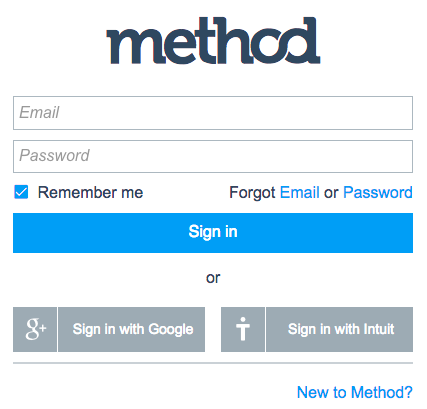
You will now be presented with an account & version selection page once you sign in with this new page. Please note the Forgot Email option in case you are not sure what email your Account and User Name are associated with.
|
-
The following is now live for users of Method:Classic
- Updated Screen - QBO_Invoice - Now filters items using the IsUsedOnSalesTransaction field, for QBO customers in the USA.
- Updated Screen - QBO_Estimate - Now filters items using the IsUsedOnSalesTransaction field, for QBO customers in the USA.
- Updated Screen - QBO_SalesReceipt - Now filters items using the IsUsedOnSalesTransaction field, for QBO customers in the USA.
- Updated Screen - QBO_Global_Invoice - Now filters items and tax codes using the IsUsedOnSalesTransaction field, for QBO Global customers (Canada and Australia).
- Updated Screen - QBO_Global_Estimate - Now filters items and tax codes using the IsUsedOnSalesTransaction field, for QBO Global customers (Canada and Australia).
- Updated Screen - QBO_Global_SalesReceipt - Now filters items and tax codes using the IsUsedOnSalesTransaction field, for QBO Global customers (Canada and Australia).
Enjoy,
Paul
|
-
The following is now live for users of Method:Classic
- NEW FEATURE - Method now syncs with QBO Bills. Bills are an accounting transaction that records an amount owed and/or paid to a Vendor / Supplier. Inside Method, you can view and edit bills that were entered in QBO. You can also create a new Bill in Method and have it sync to QBO. While we have synced with Bills on QB Desktop before, this is the first vendor transaction that Method has synced with for QBO. To access it, change your tab group in the top-right to “QuickBooks”. Then click Vendors > Bills.
- New Screen - QBO_Bill - This is the screen used for QBO customers in the USA.
- New Screen - QBO_Global_Bill - This is the screen used for QBO Global customers (mainly Canada and Australia).
- Updated Screen - QBO_ItemService - Now includes Is Used On Purchase Transactions checkbox, for QBO customers in the USA.
- Updated Screen - QBO_Global_ItemService - Now includes Is Used On Purchase Transactions checkbox, for QBO Global customers (mainly Canada and Australia).
Enjoy,
Paul
|
-
The following updates will soon be made live for users of Method:Classic.
The following updates are planned for Feb 12, 2015.
- Feature - Implement Bill Transactions syncing for QBO (USA) and QBO (Global). Note, the screen pushes and actual feature launch will come soon, this is just the platform and sync groundwork. (Ticket IN-85)
- Fix - Tax rounding error sometimes off by 1 cent vs. QB Desktop (USA). This is for estimates where the tax item is not a tax group. (Ticket AS-11)
- Fix - Copying screen breaks show/hide section. (Ticket AS-12)
- Fix - Sync aborts on QBO Canada account when the tax code has a blank description. (Ticket AS-13)
- Fix - QBO changes for estimates not syncing to Method when the descriptions include non-ASCII characters. (Ticket AS-14)
- Fix - ExchangeRate field listed as Integer in Currency table, not syncing for QB Desktop. (Ticket AS-19)
- Fix - Issue with the automatic assigning of invoice numbers in tenant accounts of a multi-tenant account. (Ticket AS-20)
- Fix - Unable to save changes to Expense & Income Accounts on ItemService screen. (Ticket AS-57)
- Fix - Screen hangs when an image has a dynamic source with a semi-colon in its URL. (Ticket AS-69)
- Fix - Loop inside a loop does not execute for 501st record. (Ticket AS-71)
- Fix - QBO Payments is syncing, even with Wait For Approval Checked. (Ticket AS-157)
Enjoy,
Paul
|
More Posts « Previous page - Next page »
|
|
|